Add Deceased Loved One to Photo AI Prompt
If you use ChatGPT, Gemini or another AI image editor, the prompt below is the kind that works well for adding a loved one who has passed away into a photo. Upload the main photo first and the photo of your loved one second, then paste the prompt. Or skip the prompting and use the tool on this page, which already does this for you.
First photo free with an account · then 5 photos for $4.99, no subscription
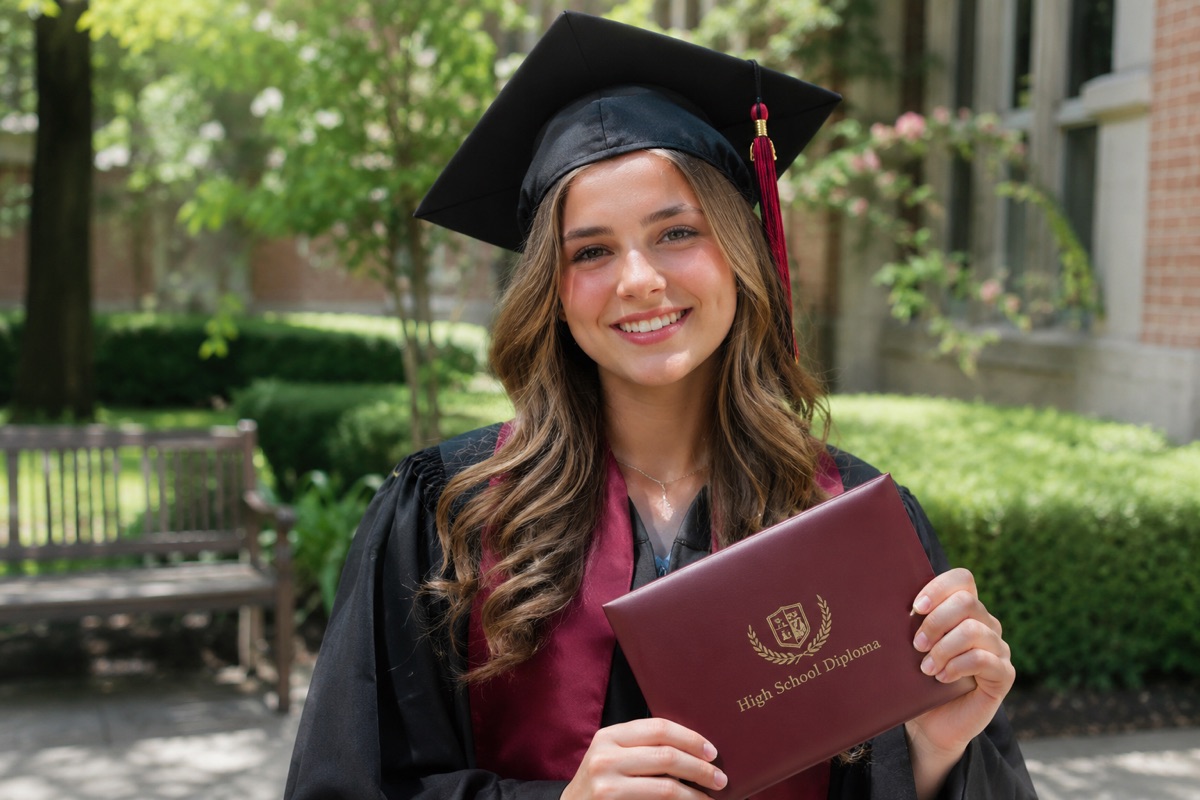
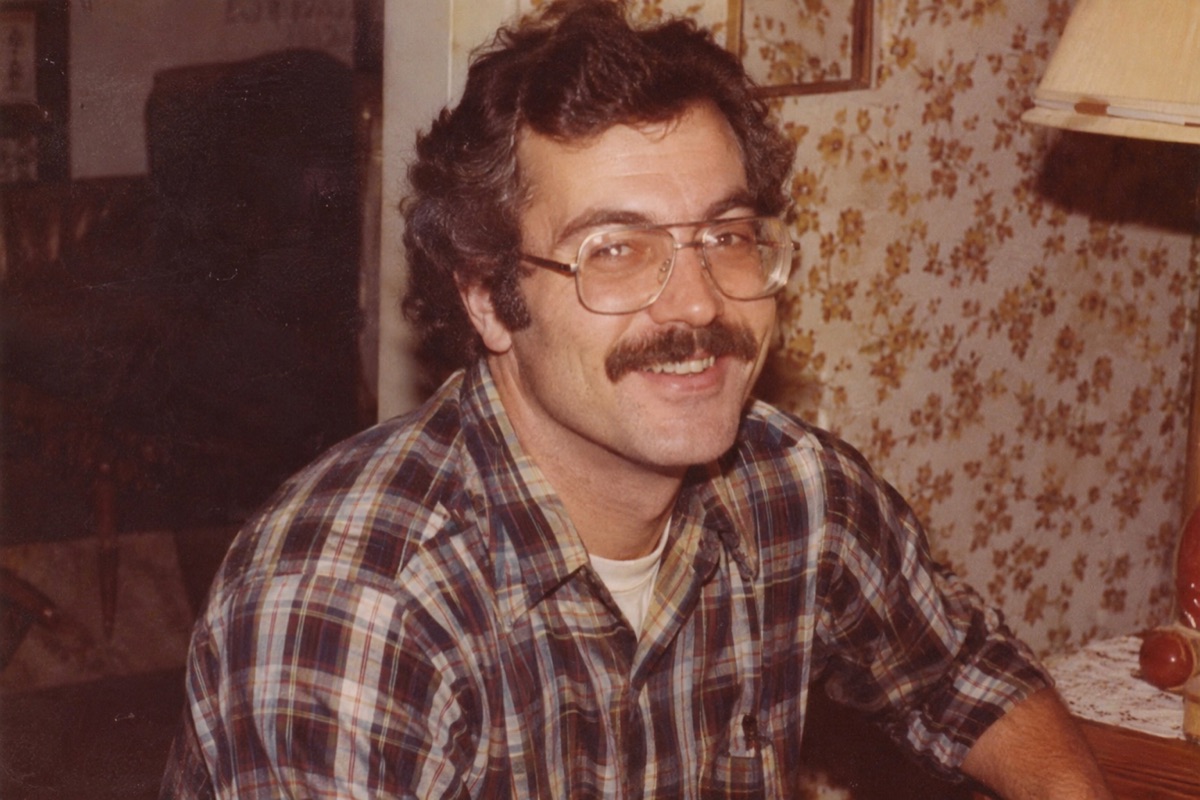
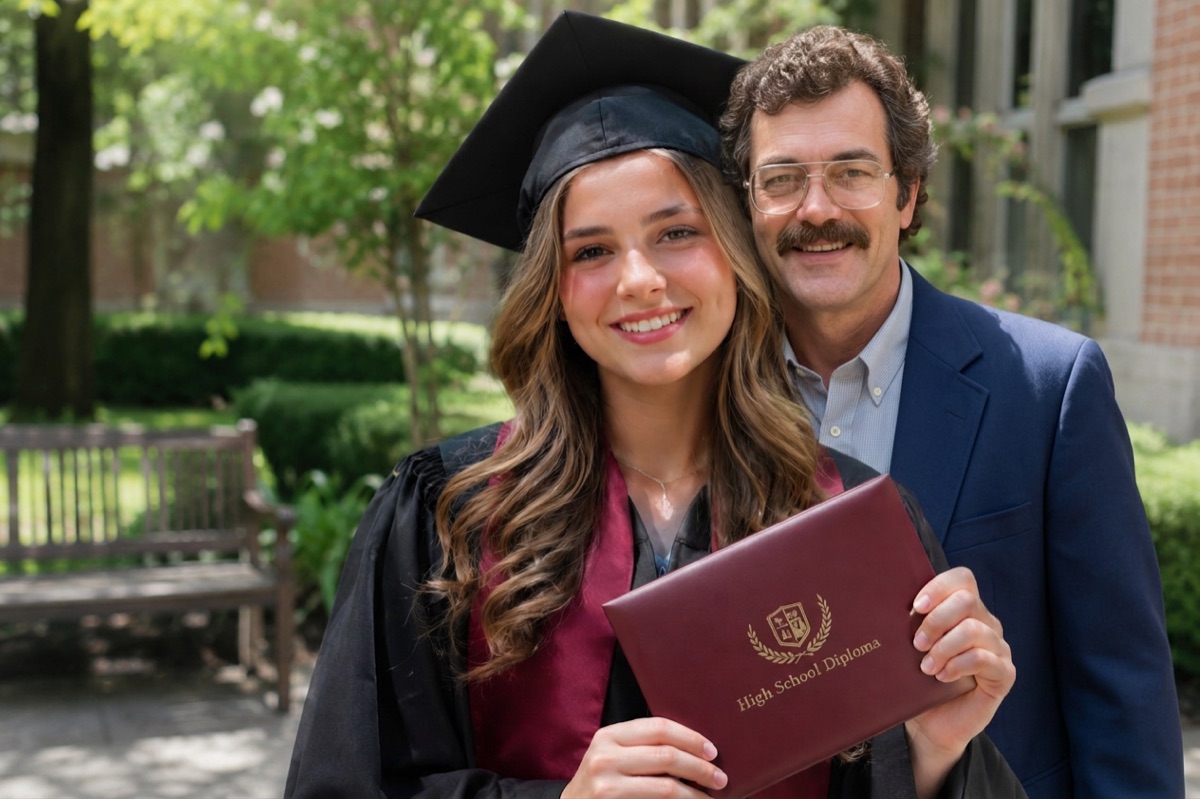
Example
1. The photo to add them to
2. A photo of the loved one
How it works
- Choose the photo you want your loved one to be part of: a family photo, a wedding, a graduation or any everyday moment.
- Add a clear photo of your loved one. An old print you photograph with your phone is fine; black and white works too.
- Press the button. In about a minute you get one new photo with them in it, ready to download, print or share.
The prompt
Attach two images in this order: the photo you want them in, then the photo of your loved one. Then paste:
Edit the first image. Add the person from the second image into the first photo, so they look like they were really there when it was taken: standing or sitting close beside the others, as part of the group.

Do not change anyone or anything already in the first photo: keep every face, pose, piece of clothing and the background exactly the same.

Keep the added person's face, age, hairstyle and identity true to the second image. Give them a natural pose and clothes that suit the occasion.

Match the first photo's light direction, colors, white balance, sharpness, grain, perspective and scale, so the result looks like one real, unedited photograph. If the second image is black and white or faded, show the person in natural color that matches the first photo.
Why this prompt works
- It says which image is edited. Without “edit the first image”, many models make a brand new picture and change everyone’s faces.
- It protects the people already in the photo. Asking to keep faces, poses and clothing exactly as they are stops the model from “improving” them.
- It asks for faithfulness to the loved one’s face, age and hairstyle, which is what matters most to the family.
- It names the things that give a fake look away: light direction, white balance, grain, perspective and scale.
- It handles old photos: black and white or faded pictures are brought into the color of the main photo.
Useful additions
- Place them exactly: “Place them standing on the left, with a hand on the bride’s shoulder.”
- Choose clothing: “Dress him in a dark suit with a light blue tie.”
- Keep it black and white: replace the last sentence with “Make the whole photo black and white.”
- Show them younger or older: “Show her as she looked in her sixties.” Results are less faithful the further you move from the photo.
Common problems and fixes
- Faces of the others changed: start the prompt with “Edit the first image” and add “Do not change any existing face.”
- The added person looks pasted in: use a photo of them taken in similar light, or ask again for matching light and grain.
- They look like someone else: use a sharper, larger, front-facing photo of their face.
- ChatGPT or Gemini refuses: some tools refuse edits of real people. Our tool is made for exactly this and your first photo is free.
Questions
- Can ChatGPT add a deceased loved one to a photo?
- Often, yes. Upload the main photo and the photo of your loved one and use a prompt like the one above. Results vary: it may change the faces of the others or refuse photos of real people. The tool on this page uses a tested prompt and keeps everyone else unchanged.
- Does the prompt work in Gemini?
- Yes. Gemini’s image editing accepts two images and follows the same prompt. Upload the main photo first.
- How do I add someone who passed away to a photo?
- You need two photos: the photo you want them in, and a clear photo of the person who passed away. Upload both above, press the button, and in about a minute you get one new photo with your loved one standing or sitting naturally with the others, in matching light and color.
- Is there a free AI app that can help me remember deceased loved ones?
- Yes. This site uses AI to place a loved one who has passed into a photo of a moment they missed, such as a wedding, a graduation or a new baby. Your first photo is free with an account, and you can print the result, frame it or share it with family.
- How much does the tool cost?
- Your first photo is free when you create an account and confirm your email. After that, photos come in one-time packs: 5 photos for $4.99, 15 for $9.99 or 40 for $19.99. One credit is one photo. There is no subscription, and you can also buy a pack without creating an account.
- What happens to the photos I upload?
- Your photos are only used to make your picture. They are kept private, are never shown to other visitors and are deleted automatically after 30 days. You can delete your account at any time.
More about adding a loved one to a photo
- Add Deceased Loved One to PhotoAdd a deceased loved one to a family, wedding or graduation photo. Upload two photos and get one natural, realistic picture together. First photo free.
- Add Deceased Loved One to Photo with AI, FreeAdd a deceased loved one to a photo with AI for free: create an account, confirm your email and your first photo is on us. No app, no subscription.
- Add Deceased Loved One to Photo AppAn add deceased loved one to photo app that works in your phone’s browser on iPhone and Android. Pick two photos from your camera roll, no install needed.
- How to Add a Deceased Loved One to a PhotoHow to add a deceased loved one to a photo: with an AI tool in a minute, by hand in Photoshop or GIMP, or with a photo studio. Tips on choosing photos and printing.
Your photos are safe with us
Your photos are only used to make your picture, are never shown to anyone else and are deleted automatically after 30 days. Photos of public figures and explicit content are refused automatically.